
NotebookLM AI Extensions: 7 Free Tools for Faster Research in 2026
Google's NotebookLM started as a quiet research tool and grew into one of the most capable AI note-taking platforms of 2026. It reads long documents, generates summaries, and answers questions about your sources with impressive accuracy. But spend a few weeks using it seriously, and certain gaps become hard to ignore. There are no folders to separate your projects. Adding a YouTube video takes multiple copy-paste steps. And when you need to share your research as a polished presentation, there is no direct export button in sight.
These limitations are not flaws in the AI itself. They are gaps in the surrounding interface. And the good news is that a set of free Chrome extensions fills each one of them. This guide walks through seven of them, what they each solve, and how to set them up in minutes.
What Is NotebookLM AI? And Why Do You Need Extensions?
Why It Matters Right Now
NotebookLM is Google's AI-powered research and note-taking tool. You upload documents, paste links, or add YouTube videos as sources, and the AI reads them all. From there, you can ask it questions, generate summaries, create audio overviews, and organize your findings. It is a genuinely useful tool for students, researchers, writers, and professionals who deal with large amounts of information regularly.
The issue is scale. When your library grows to 20 or 30 notebooks, the home screen becomes a cluttered list with no way to sort by project, topic, or category. Every time you want to add a video from YouTube, you have to copy the link, switch tabs, open the notebook, click Add Source, and paste. These repetitive steps are small individually but collectively drain your focus during deep research sessions.
That is exactly where third-party Chrome extensions come in. They are lightweight browser add-ons that add what Google has not yet built natively. No developer access required, no paid subscription for most of them, just a one-click install from the Chrome Web Store.
The Background Behind NotebookLM Extensions
NotebookLM launched as an experimental Google Labs project before becoming widely available in 2024. It was designed around the idea of grounding AI responses in your own documents rather than its general training data. That made it more reliable and focused than general-purpose chatbots for research purposes.
However, Google built the core platform around AI capabilities rather than workflow features. Folder systems, export formats, and browser integrations were not part of the initial scope. As the user base grew, developers in the Chrome extension ecosystem started identifying these gaps and building targeted tools to address them. By early 2026, a small but well-developed set of extensions had emerged that meaningfully extended what NotebookLM could do in a daily research workflow.
How These 7 NotebookLM Extensions Actually Work
Core Function: Browser-Level Additions
Each extension operates at the browser interface level. They do not modify the NotebookLM AI model itself or access your notes on external servers. Instead, they add buttons, panels, and features to the NotebookLM interface as it appears in your Chrome browser. Most only activate when you are visiting the NotebookLM website, so they have no effect on other browsing.
This extension places a dedicated button directly on every YouTube video page, positioned next to the Like and Share buttons below the player. When you click it, the video transcript is sent straight into a notebook of your choice. No tab switching, no link copying, no manual paste.
How to Set It Up- 1Install the extension from the Chrome Web Store
- 2Open any YouTube video you want to study
- 3Look for the new button below the video player
- 4Click it, select your target notebook, and confirm
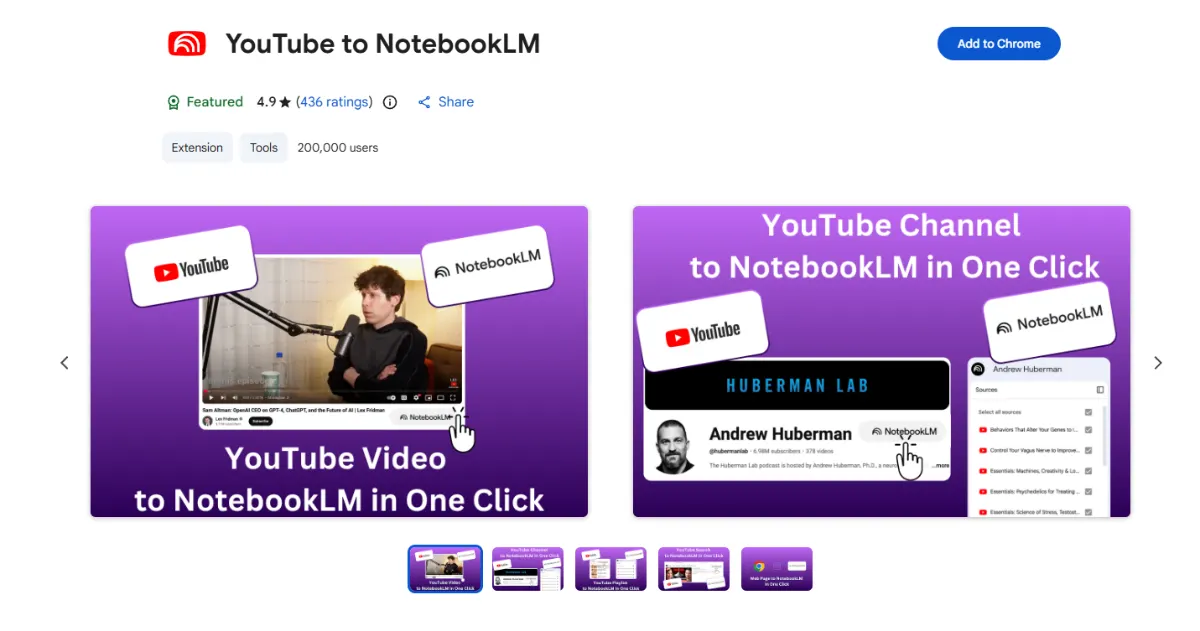
This approach is especially useful for screening long tutorials or lectures before committing to watching the full length.
The Web Importer extension adds a single icon to your browser toolbar. When you are on any webpage, whether a news article, blog post, or Wikipedia entry, clicking the icon captures the clean text content and sends it directly to your chosen notebook. The extension strips out ads and sidebar content, so the AI receives only the relevant article text.
How to Use It- 1Install the extension
- 2Visit any webpage you want to save as a source
- 3Click the extension icon in your toolbar
- 4Select your notebook and click Add to Notebook
NotebookLM has no native folder system. Once you reach 20 or more notebooks, the home screen becomes a flat list with no grouping or filtering. Bookshelf solves this by adding a blue sidebar panel to your NotebookLM home screen where you can create named folders, drag notebooks into them, and click a folder name to see only the notebooks inside.
Building Your First Folder- 1Click the new blue sidebar button on the left side of the screen
- 2Click the + sign to create a new folder (for example, "Work Research" or "Study Notes")
- 3Drag your notebooks into the relevant folder
- 4Click the folder name to filter to only those notebooks
The sidebar stays visible even when a notebook is open, so switching between projects takes a single click rather than navigating back to the home screen.
Kortex is the most feature-rich option on this list. It acts as a professional layer on top of NotebookLM, adding capabilities that go beyond simple quality-of-life improvements.
Google Docs SyncBy default, Google Docs sources in NotebookLM are static snapshots. Kortex adds a Sync button that updates a Google Doc source to its latest version with one click, removing the need to delete and re-add documents whenever they change.
Private Podcast FeedNotebookLM can generate audio summaries of your notebooks. Kortex takes this a step further by turning those audio outputs into a private podcast feed that plays directly in Spotify, Apple Podcasts, or on wearable devices. No manual downloading or file transfers needed.
Filtering and BackupKortex also lets you filter your sources by file type, such as PDFs, YouTube videos, or web articles, and download all sources at once for offline storage or account transfers.
Pricing: A free version is available. The Pro plan is approximately $2.40 per month or $49 for a lifetime license (per source pricing at time of publication, subject to change).
For users who prefer working in a language other than English, the Language Switcher extension translates the NotebookLM interface including buttons, menus, and labels into a chosen language. It changes the shell of the application but leaves your actual notes and notebook titles in their original language.
This is a straightforward accessibility tool with no impact on the AI's functionality. It simply makes the interface more readable for non-English-native users.
NotebookLM keeps most of its content locked inside the browser. Ultra Exporter unlocks three important export paths for professionals who need to share or continue working on their research outside the platform.
PowerPoint ExportDownload AI-generated slide decks as editable .pptx files. Once in PowerPoint or Google Slides, you can change fonts, adjust colors, add branding, and prepare the deck for a presentation.
Chat History ExportSave long AI conversations as PDF or plain text files. Useful for archiving research sessions or sharing findings with collaborators who do not use NotebookLM.
Markdown for Writers and BloggersExport notes as Markdown files that preserve formatting such as bold text, headers, and bullet points. This makes pasting into tools like Notion, Obsidian, or a blog CMS much cleaner than copying from a browser window.
NotebookLM adds its logo to AI-generated infographics and slide visuals. Removing that watermark is otherwise a feature of the $250 per month NotebookLM Plus plan. This free extension offers an alternative approach using an external image editing tool.
How to Remove a Watermark- 1Download the image using Ultra Exporter
- 2Upload the file to the Magic Eraser website
- 3Brush over the logo area and apply the removal
For batch processing, the Slide Deck Cleaner companion tool lets you upload multiple slide images at once for automated watermark removal across an entire deck.
What This Means for the AI Research Industry
Competitive Landscape
NotebookLM's gap-filling extension ecosystem reflects a broader pattern in the AI tools space. Core AI platforms are being built for capability, not workflow integration. The surrounding tooling layer, often created by independent developers, is what makes them viable in real professional environments. The same pattern has played out with tools like Notion, Figma, and even early versions of Google Docs.
Market Disruption Potential
For Google, this extension ecosystem is both a validation and a gentle signal. Independent developers building free tools to fill gaps in a Google product means real users have real unmet needs. It also means that if Google does eventually build native folder support or export options, these extensions become obsolete. For now, they represent the practical bridge between what NotebookLM offers and what power users actually need.
Enterprise Implications
Organizations that use NotebookLM for research, competitive intelligence, or knowledge management can compound its value significantly by standardizing on this extension stack. Teams that use the Bookshelf folder system for shared project organization and Kortex for audio briefings accessible on mobile reduce manual coordination overhead in research workflows.
Regulatory or Policy Considerations
Third-party extensions that interact with Google products do carry inherent questions around data privacy. Most of the tools listed here operate only on the visible interface and do not send your note content to external servers. However, users in regulated industries should review each extension's permissions and privacy policy before installing.
How NotebookLM Compares to Alternatives
| Extension | Best Use Case | Free? |
|---|---|---|
| YouTube to NotebookLM | Saving video transcripts with one click | Yes |
| Web Importer | Capturing articles and blog posts cleanly | Yes |
| Bookshelf Manager | Organizing notebooks into project folders | Yes |
| Kortex | All-in-one hub: sync, podcast feed, backups | Free + Paid |
| Language Switcher | Interface translation for non-English users | Yes |
| Ultra Exporter | Exporting content to PowerPoint, PDF, Markdown | Yes |
| Magic Watermark Eraser | Removing NotebookLM branding from visuals | Yes |
Among competing AI research tools, Notion AI and Microsoft Copilot both have more built-in organizational features. However, neither matches NotebookLM's source-grounding approach, where the AI only draws answers from documents you have explicitly uploaded. The extension layer compensates for NotebookLM's organizational shortcomings while preserving this core accuracy advantage. According to Google's NotebookLM product documentation, source-grounded responses remain the platform's defining characteristic compared to tools that use general model knowledge.
Risks, Limitations, and Open Questions
These extensions are useful, but they come with real limitations worth understanding before you build them into a critical workflow.
Extension Stability and MaintenanceThird-party Chrome extensions are maintained by independent developers, not by Google. If Google updates the NotebookLM interface significantly, an extension may break and could take days or weeks to receive a patch. Relying on an extension for a time-sensitive workflow carries that risk.
Privacy ConsiderationsMost extensions in this list operate only on the visual interface layer. However, "most" is not a guarantee. Before installing any extension, open its Chrome Web Store listing and review the permissions it requests. Extensions that request access to all websites or access to your browsing history should be examined carefully, especially if you research sensitive topics.
Kortex Pricing UncertaintyThe Kortex pricing cited here ($2.40/month or $49 lifetime as of March 2026) is based on the source used for this article and may have changed. Always verify current pricing on the Kortex website before purchasing a plan.
Google's RoadmapGoogle has not publicly committed to building native folder support, PowerPoint export, or other features covered by these extensions. If they do eventually ship these features natively, some extensions will become redundant. There is no risk in using them in the meantime, but it is worth knowing that the gap they fill may not exist permanently.
What Happens Next?
The extension ecosystem around NotebookLM will likely expand as the platform's user base grows. Developers who identify high-demand gaps have a clear incentive to build targeted tools, especially given the low barrier to publishing Chrome extensions. It is reasonable to expect more export formats, deeper integration with document editors, and potentially paid tools with more advanced capabilities.
At the platform level, Google is likely to observe which extensions gain the most adoption as implicit feedback about what users want built natively. Tools like Bookshelf and Ultra Exporter, which address fundamental missing features, have the clearest case for eventually being absorbed into the core product. When or whether that happens is not publicly known, but the direction of travel points toward NotebookLM's growing role in professional research workflows.
For individual users, the immediate opportunity is clear. Every extension on this list is free, installs in under two minutes, and solves a real problem that NotebookLM currently does not address natively. The question is which gap matters most in your own workflow, and that is the right starting point for choosing where to begin.
Researchers dealing with large video libraries benefit most from the YouTube importer. Writers and bloggers who move content across tools will get the most from Ultra Exporter. Anyone managing more than 15 notebooks simultaneously will feel the difference from Bookshelf immediately. Teams with collaborative research needs should evaluate Kortex's sync and podcast feed capabilities as a shared-workflow tool.
- NotebookLM AI is a powerful source-grounded research tool, but its native interface lacks folders, one-click importing, and direct export options.
- Seven free Chrome extensions fill these gaps: YouTube importer, Web Importer, Bookshelf folder manager, Kortex all-in-one hub, Language Switcher, Ultra Exporter, and Magic Watermark Eraser.
- Most extensions operate at the browser interface level only and do not send your notes to external servers, though reviewing permissions before installing is always advisable.
- Start with the extension that solves your single biggest frustration: Bookshelf for organization, YouTube importer or Web Importer for faster sourcing, Ultra Exporter for sharing work professionally.
Final Verdict
NotebookLM AI is genuinely useful for research, but its limitations are real and they compound as your library grows. The seven extensions covered here are not workarounds or hacks. They are practical tools that make an already capable platform significantly more usable in daily professional and academic workflows. Six of them are completely free. The seventh, Kortex, offers a free tier with optional paid upgrades.
The most important thing to understand is that these tools do not change what NotebookLM's AI can do. They change how efficiently you can move information in and out of it. In 2026, where research workflows increasingly rely on multiple tools working together seamlessly, that connectivity is often what separates a productive system from a frustrating one.
Pick the extension that matches your most pressing gap. Install it today. Then add another one when you notice the next friction point. Building this stack incrementally is more sustainable than installing all seven at once and trying to use them simultaneously from day one.
Start Building Your NotebookLM Stack Today
Each extension takes under two minutes to install. Start with your biggest research friction point and work from there.
Is it organization, importing speed, or exporting? Pick your biggest bottleneck first.
Go to the Chrome Web Store, search the extension name, and click Install.
Use the first extension for a week, then add the next one that solves your following friction point.